Guide
Troubleshooting
Updated August 24, 2026
A scan is stuck on Processing, or shows Failed
Uploads convert on our servers — a big point cloud can take several minutes, and you can leave the page while it runs. If it fails, the reason appears on the file's row in the scan's Manage files dialog — read it first, it usually names the fix. Your upload is stored either way: Reconvert on that row (or Retry conversion in the viewer) runs the conversion again without re-uploading.
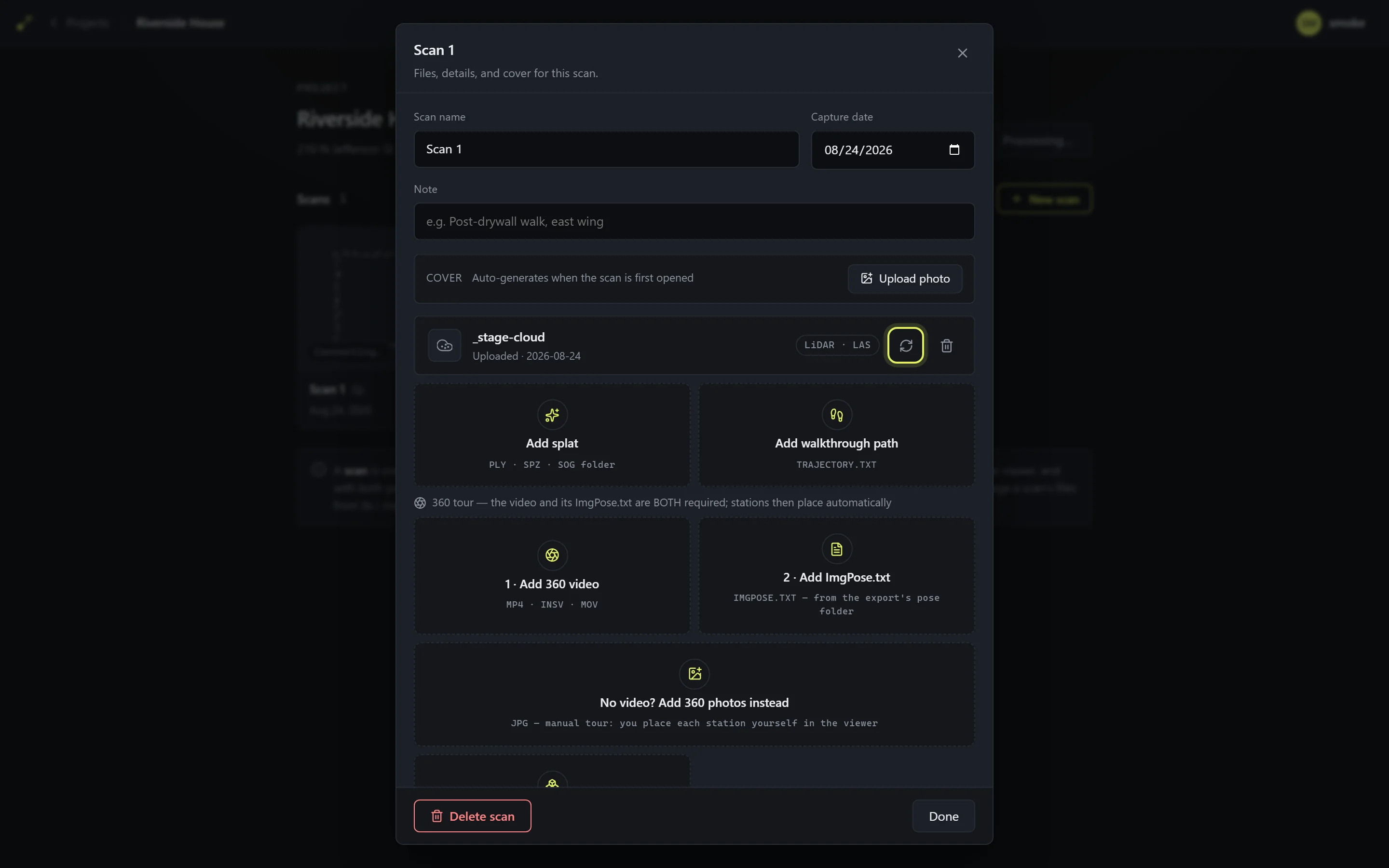
If a conversion sits far longer than the file size explains, the viewer's Processing screen offers Restart conversion — safe to press.
The 360 tour is taking much longer than the scan
Normal — tour processing extracts every station photo, runs the face-blur pass, and aligns stations to the scan. If a finished tour ever looks wrong (stations misplaced everywhere, frames from the wrong moment), Re-process 360 tour on the tour's row in Manage files re-extracts the stations from the stored video. Re-processing changes the photos, so run the alignment again afterward — see Walkthroughs & 360 tours.
A share link shows "Open on a computer" on a phone
Phones skip files they can't hold: a point cloud that hasn't finished converting yet, or a splat that isn't stored in a streaming format and is larger than about 120 MB. Most of the time this fixes itself — once processing finishes, the same link streams fine on the phone. If it persists, the scan simply needs a computer; the link works there as-is.
A share link won't open at all
Three possibilities: the link was revoked, it expired (expiring links revoke themselves), or the visitor typed the wrong password. The project owner can check every link's state under Active links in the Share dialog and copy or re-create one in seconds — see Sharing projects.
The 3D view is choppy or goes blank
Choppy: open the quality control (top right) and pick a lower tier — it normally manages itself, but a manual step down helps on older machines. Closing other 3D-heavy tabs helps too. On phones, the share viewer's settings include a Performance mode toggle.
Blank with a reload prompt: the browser interrupted the 3D context (usually memory pressure). Reload the page; if it repeats on the same scan, drop the quality a tier and tell us — that's a bug report we want.
The minimap, levels, or walkthrough seems missing
Those come from the export files that are optional at upload. The walkthrough path (trajectory.txt) adds the route, the minimap, and level detection; the 360 video + ImgPose.txt add the photo stations; the fused mesh keeps station markers from showing through walls. If a feature seems absent, open the scan's Manage files and add the rest of the export — we recommend uploading everything it contains.
What TwinPoint runs best on
A current desktop browser — Chrome, Edge, Firefox, or Safari — with hardware acceleration on (it is by default). Editing tools are desktop-only. Phones and tablets open share links in a viewer built for touch; the full workspace is not designed for them. Very large scans stream progressively, so a fast connection shortens the first load but nothing needs to finish downloading before you can move around.
TwinPoint is built and tested around the SHARE3DCAM capture workflow and its exports. Files from other scanners or software in the same formats — LAS or LAZ point clouds, 3DGS splats — may open fine, but they aren't verified. If one misbehaves, email us the details.
Something else? Email us
Include the project name, what you did, what you expected, and your browser and device. A share link to the affected project lets us reproduce it fastest — we read every report.