Guide
Sharing projects
Updated August 24, 2026
Create a link
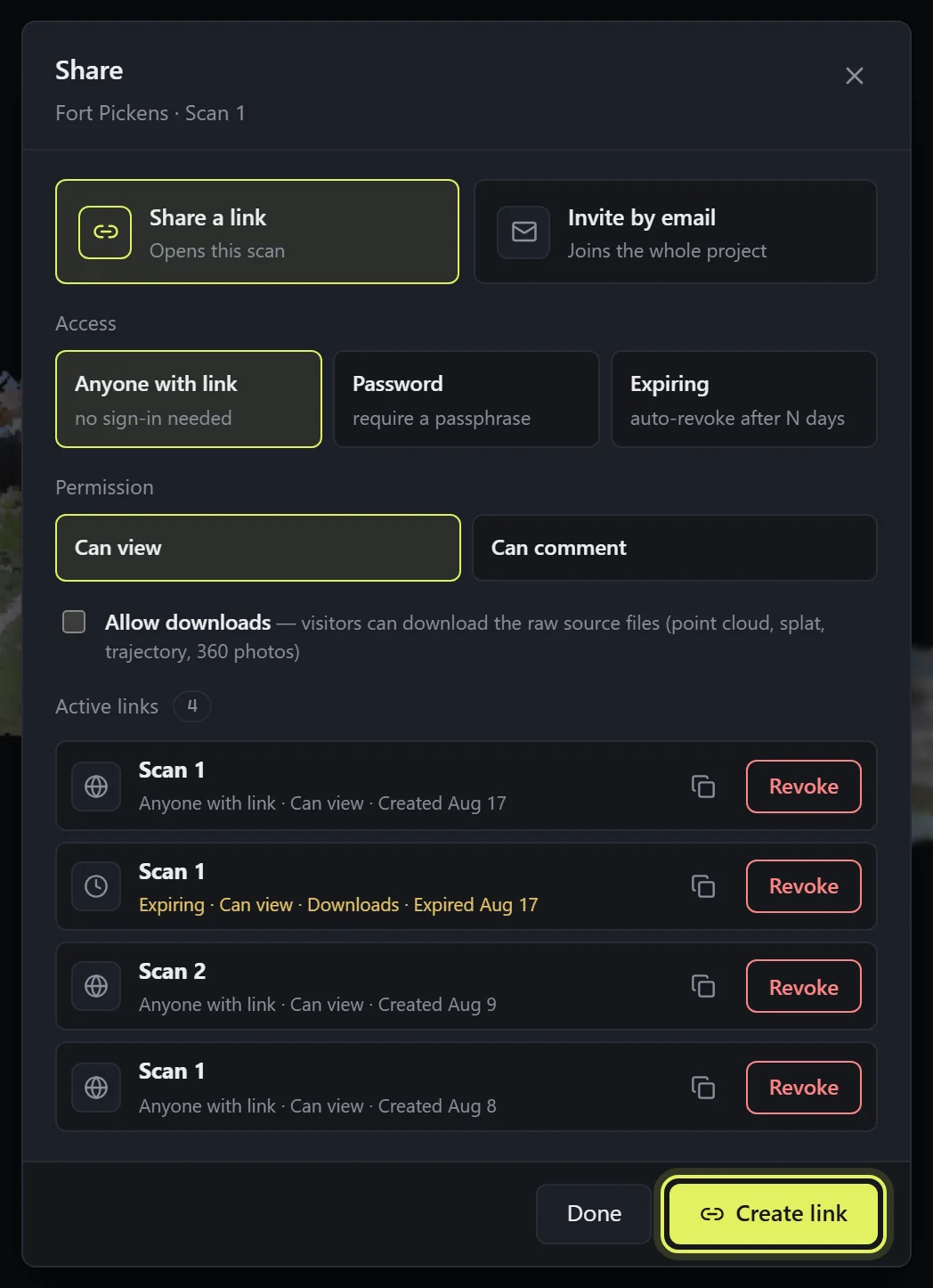
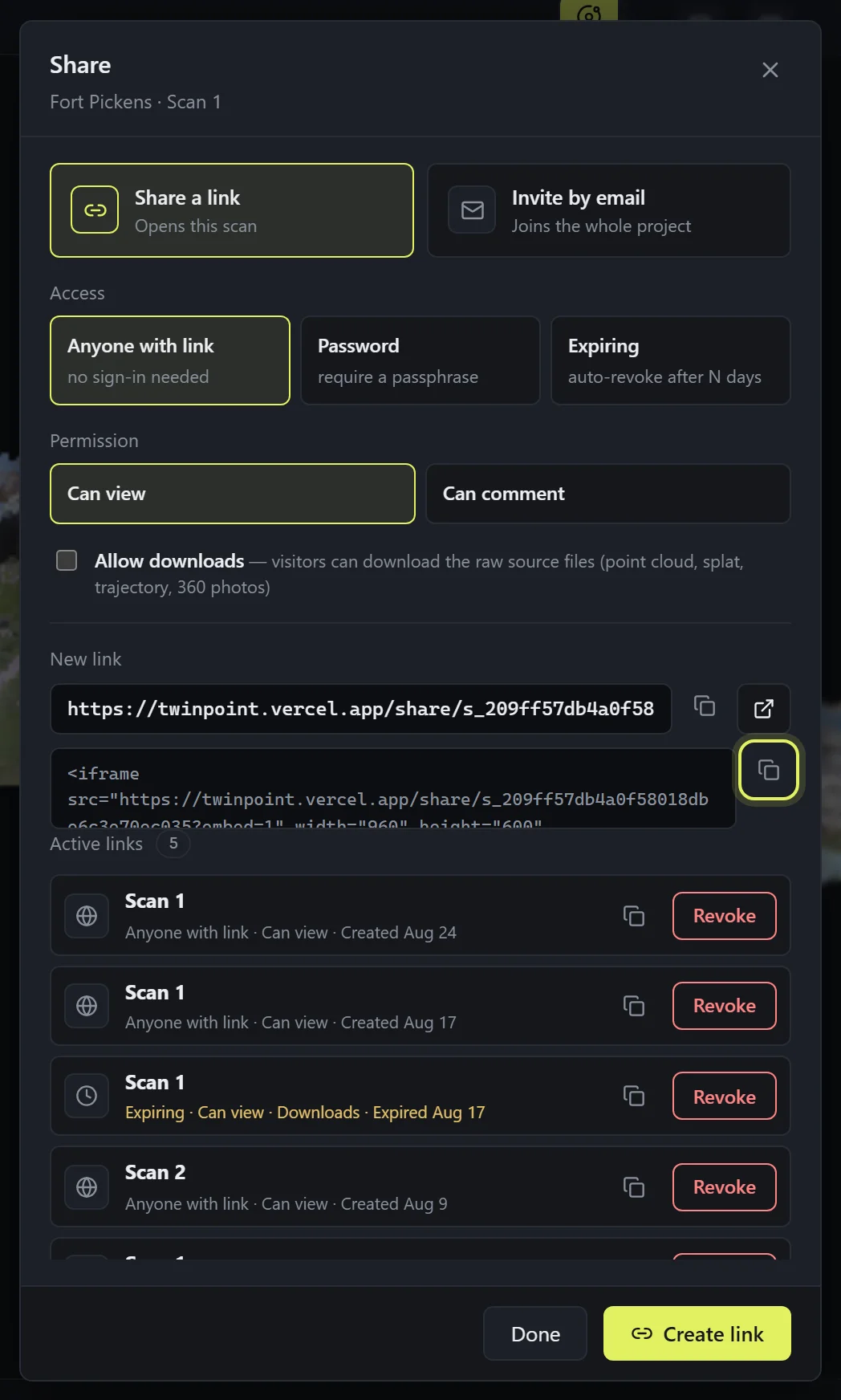
Open the scan in the viewer and press Share at the bottom of the tool rail. Choose Share a link, pick the rules below, and press Create link — then copy it and send it however you like. A share link opens the scan directly; Copy embed gives a snippet for putting the viewer on a website.
Choose who can open it
Access: Anyone with link — opens for anyone, no sign-in; Password — visitors must enter a passphrase you set; Expiring — the link revokes itself after a chosen time (a day to weeks, or a custom number of days).
Permission: Can view or Can comment. On a Can-comment link, notes a visitor pins with the Annotate tool are saved to the project — you and every later visitor see them, and a visitor can only edit or remove notes their own link created. Allow downloads is off by default — switching it on lets visitors download the raw source files: point cloud, splat, trajectory, fused mesh, 360 photos.
What visitors see
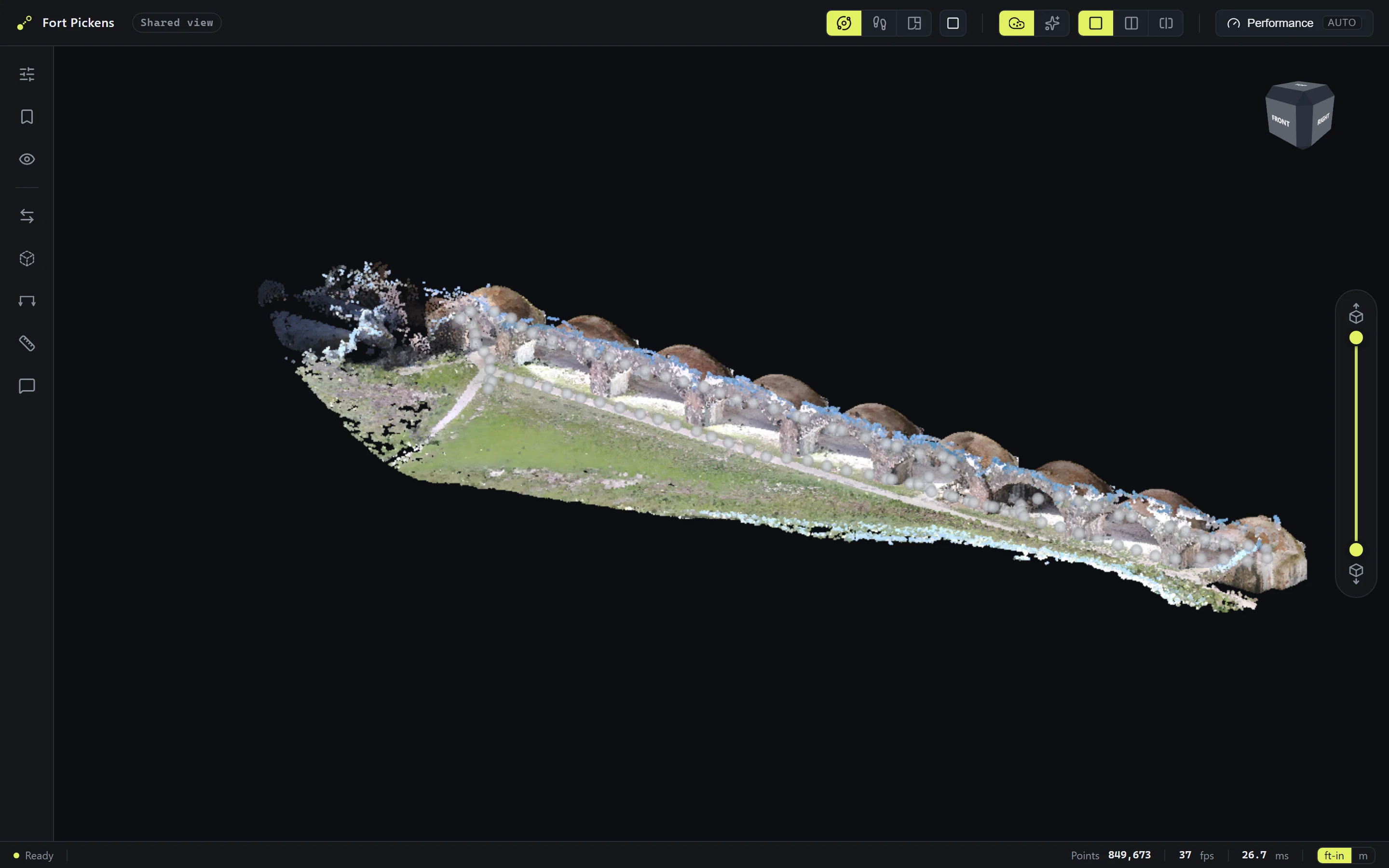
A share link opens in any browser — no account, no install. Visitors get the viewer marked Shared view: they can orbit, walk the scan, enter 360 stations, and measure. Your editing tools never appear. Measurements and views a visitor makes live only in their own tab — the one thing a visitor can add to your project is a pinned note, and only on a Can-comment link.
On phones and tablets
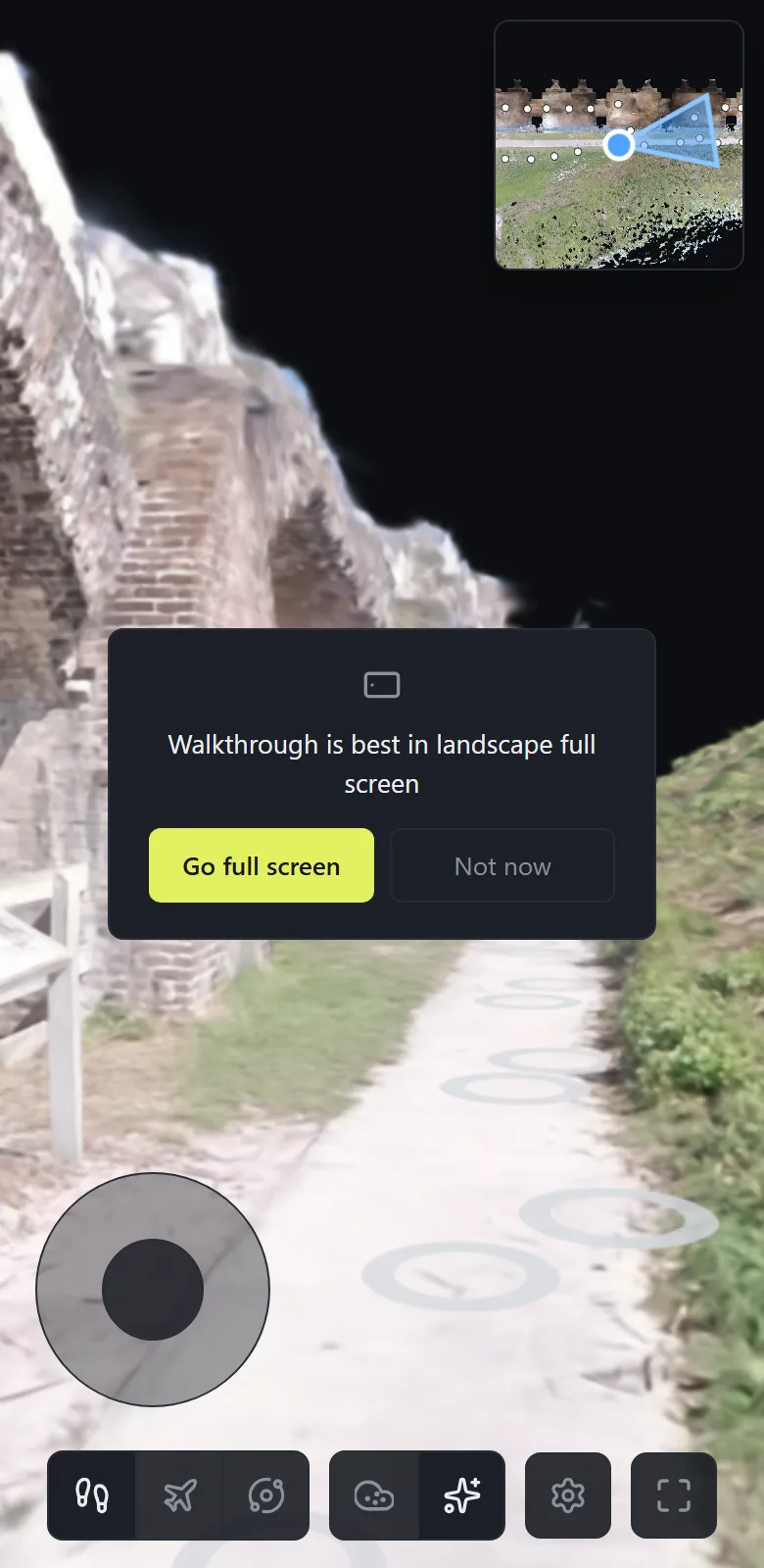
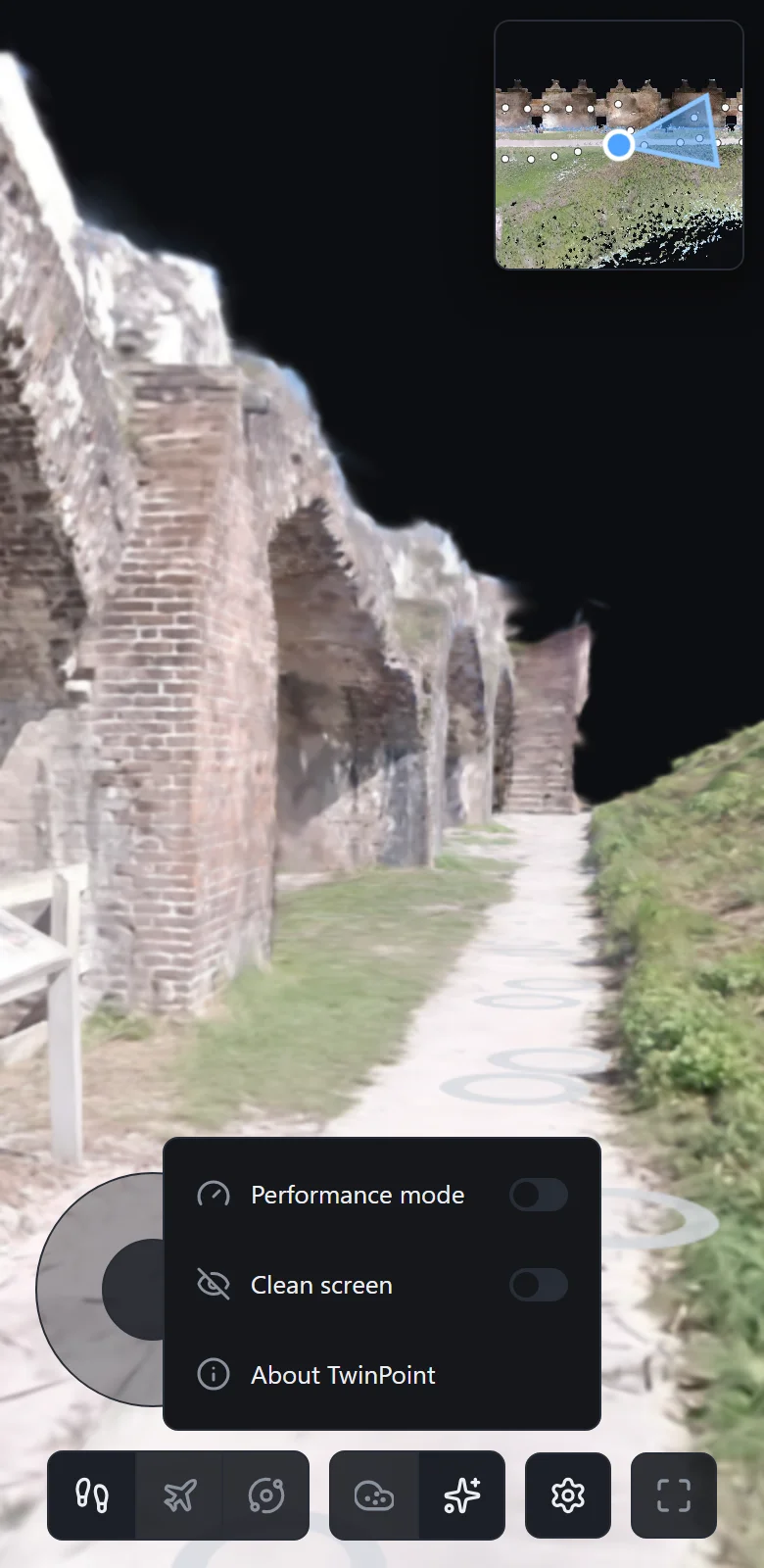
The same link on a phone or tablet opens a viewer built for touch: you start at eye level in the walkthrough, move with the on-screen joystick or by tapping the floor, and jump anywhere from the corner map — each dot is a station. Landscape full screen gives the best view.
The bottom bar keeps it to the essentials: Walk / Fly / Orbit, the point cloud / photo-real switch, full screen, and a small settings menu with Performance mode (smoother on older phones) and Clean screen (hides every overlay for a clear look around). Quality manages itself for the device. Editing — measuring, cleanup, tours — stays on the computer: the phone viewer is for walking and showing. If a phone ever shows "Open on a computer" instead of the scan, see Troubleshooting.
Manage and revoke
Active links at the bottom of the Share dialog lists every link on the project — what it opens and its rules. Copy a link again any time; Revoke stops one instantly for everyone who has it. Expired links stay in the list, labeled, until you revoke them. The workspace's Share button shows the same list.
Invite teammates to the whole project
A link opens one scan; a member joins the whole project. In the Share dialog choose Invite by email, enter their address, pick a role, and press Invite. The same list lives under People & access on the project page — change a role or Revoke access there any time.
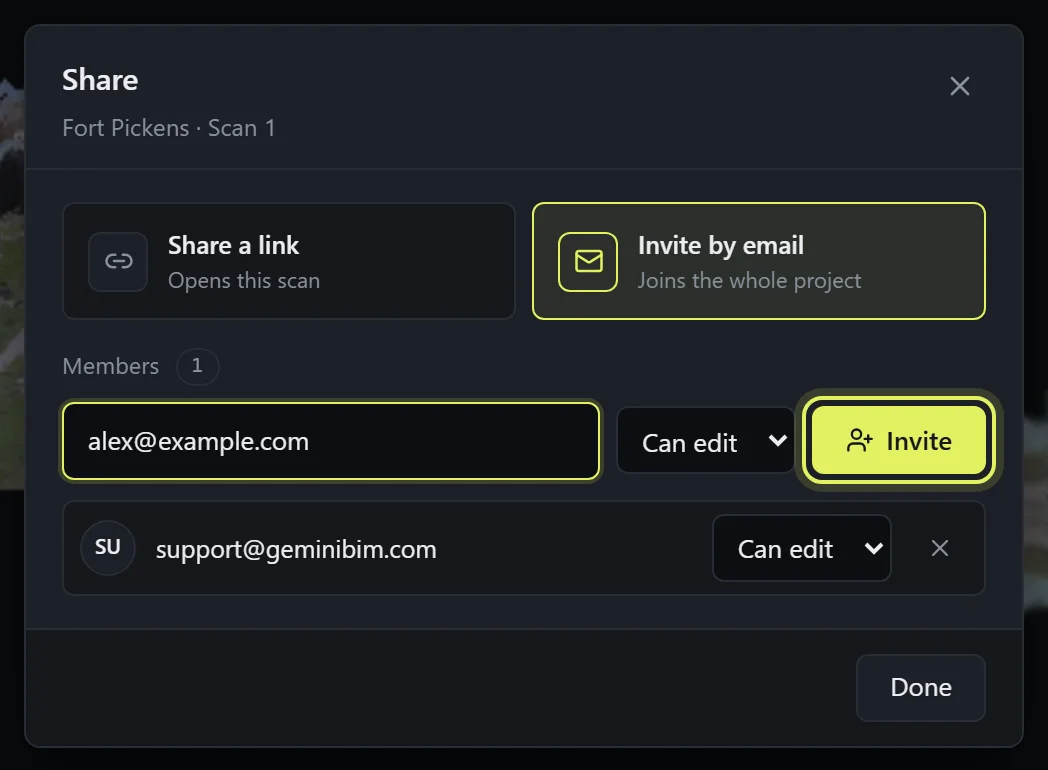
Can view — they open every scan, walk, measure, and enter 360 tours. Can edit — their notes, measurements, and saved views also save to the project, so you see each other's markup. The scans themselves stay yours alone: uploads, cleanup, alignment, and tours are owner-only, and members never count against your storage.
Members sign in with their own account — the project appears under Shared with me on their dashboard, and the viewer marks their session Shared · can view or Shared · can edit. An invite sent to an address without an account shows an invited badge until they first sign in with it; during the beta, email us and we'll set the account up.