Guide
Getting started
Updated August 24, 2026
TwinPoint is designed around SHARE3DCAM export files. Exports from other devices in the same formats may work, but they haven't been verified.
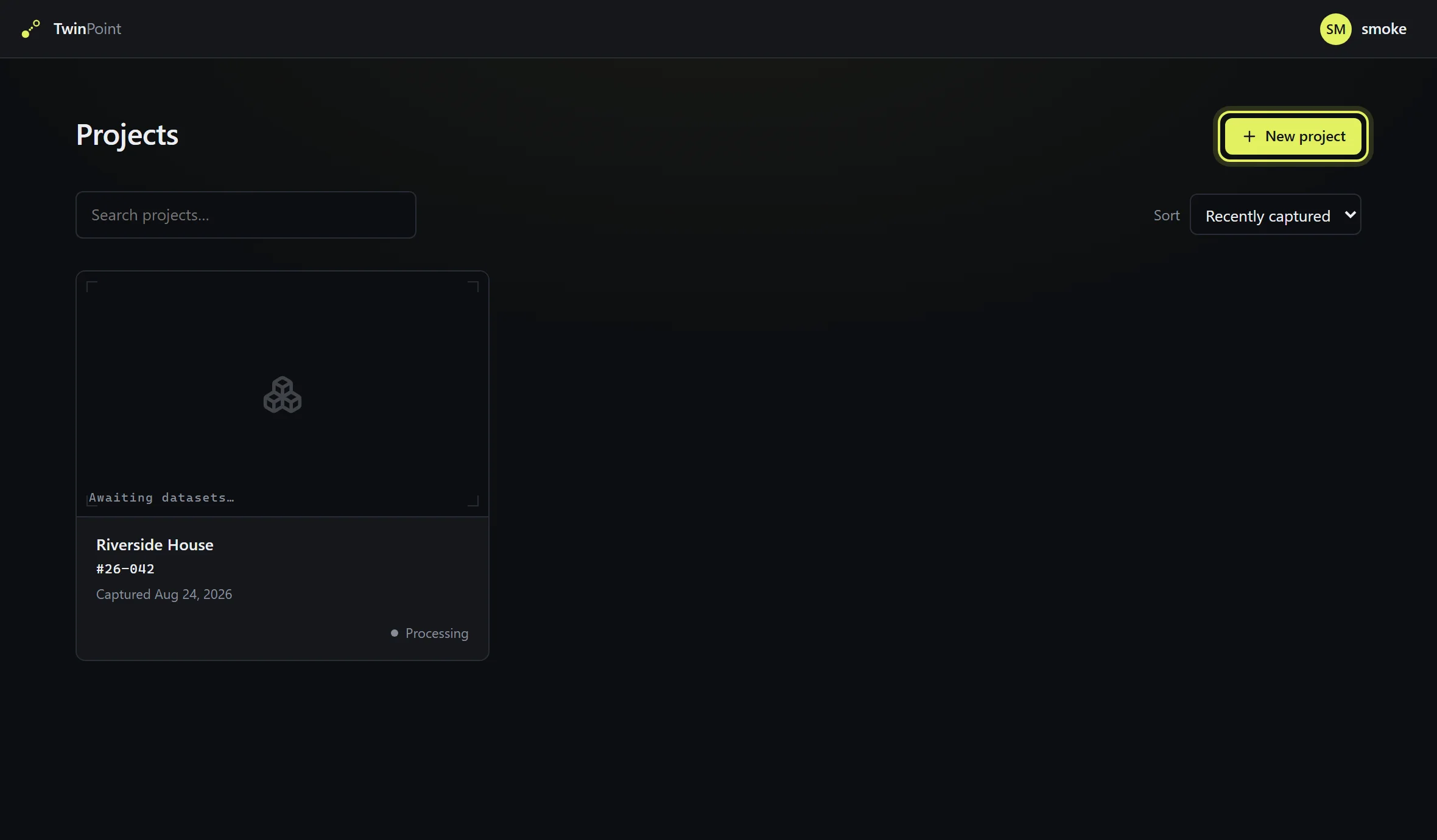
Create a project
Press New project and give it a name. Each project holds the scans for one site or job.
Add a scan
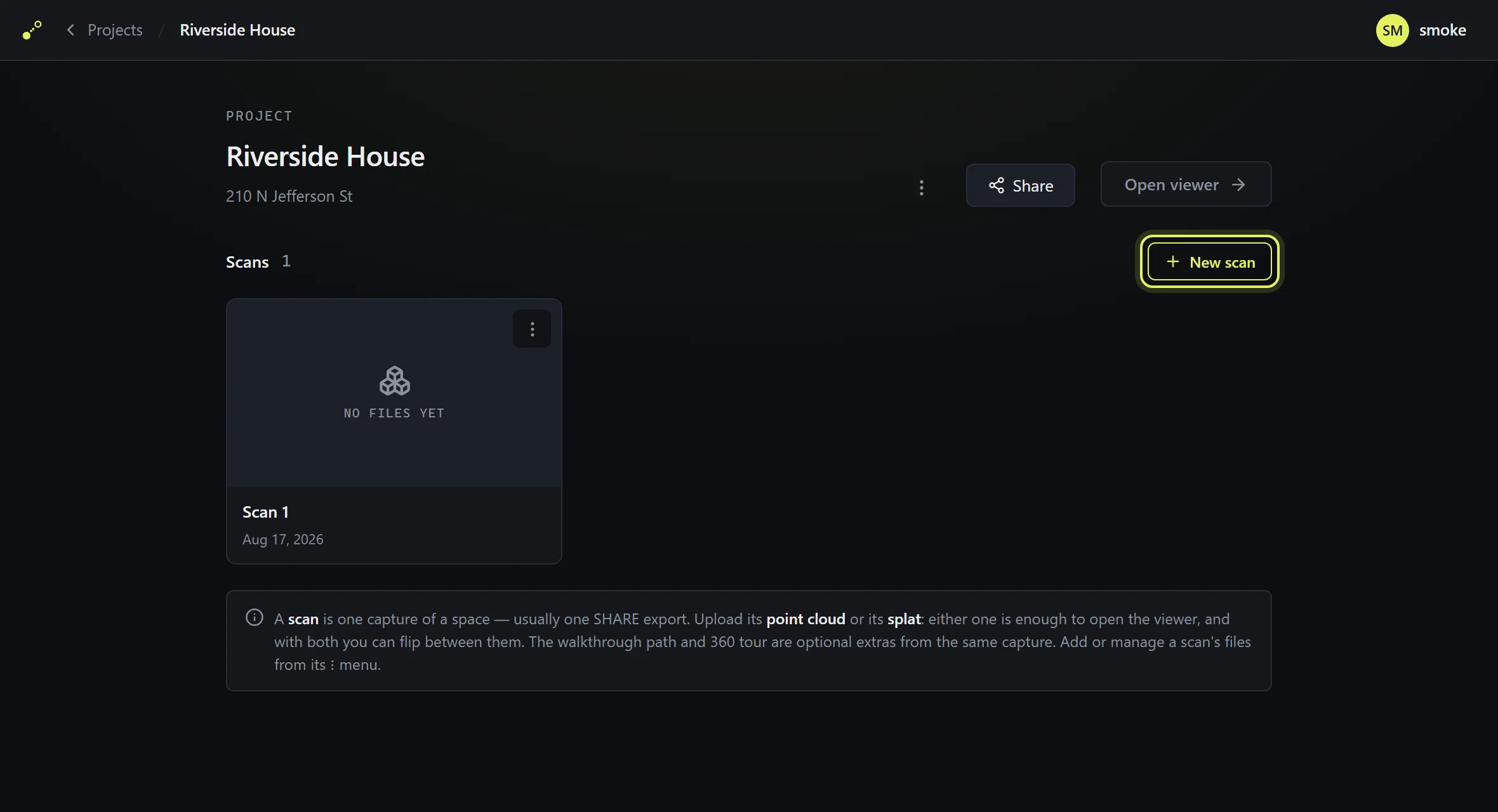
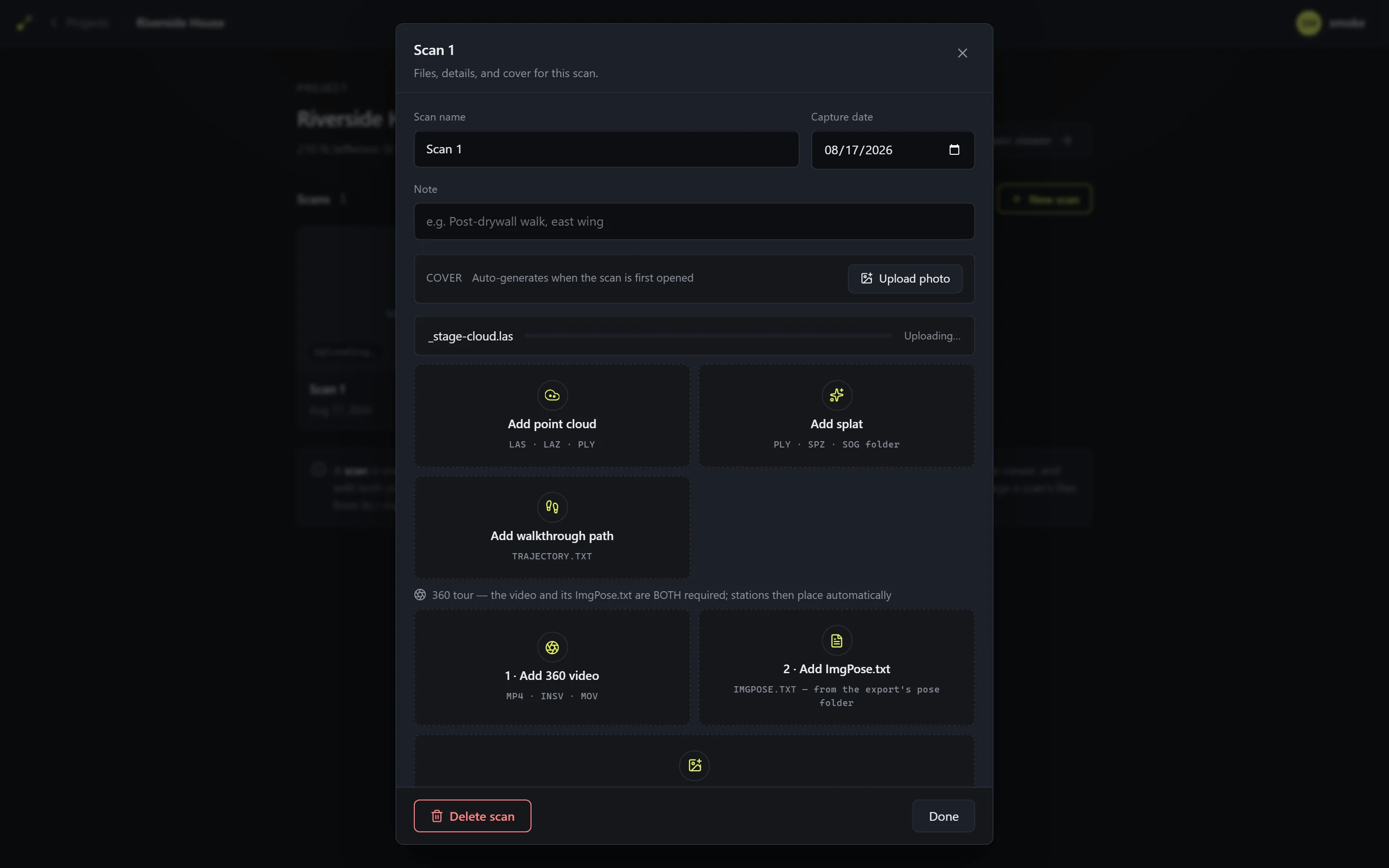
Press New scan. A scan is one capture — usually one SHARE3DCAM export. Its file window opens automatically.
Upload the capture
Drag files from your export onto the matching slot, or click a slot to browse. The point cloud or the splat alone is enough to open the viewer — but upload everything your export contains. Each optional file unlocks a real capability, and a scan with all its files is the full experience.
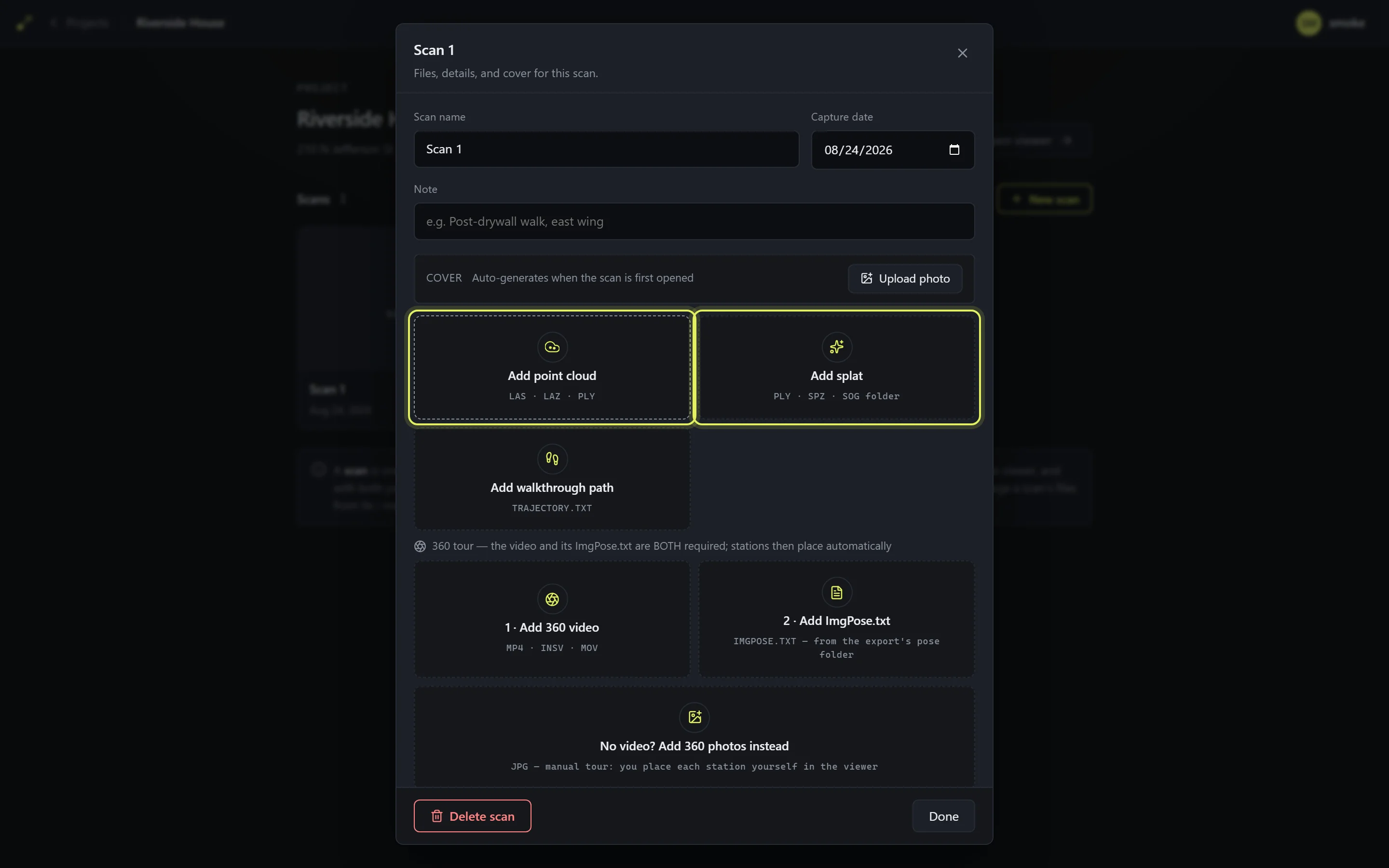
Which file goes where

Let it process
Uploaded files are converted for fast streaming. The scan shows Processing, then Ready — usually a few minutes. You can leave the page while it runs. If a file ever shows Failed, the reason appears on its row and a Reconvert retries without re-uploading — see Troubleshooting.
View and share
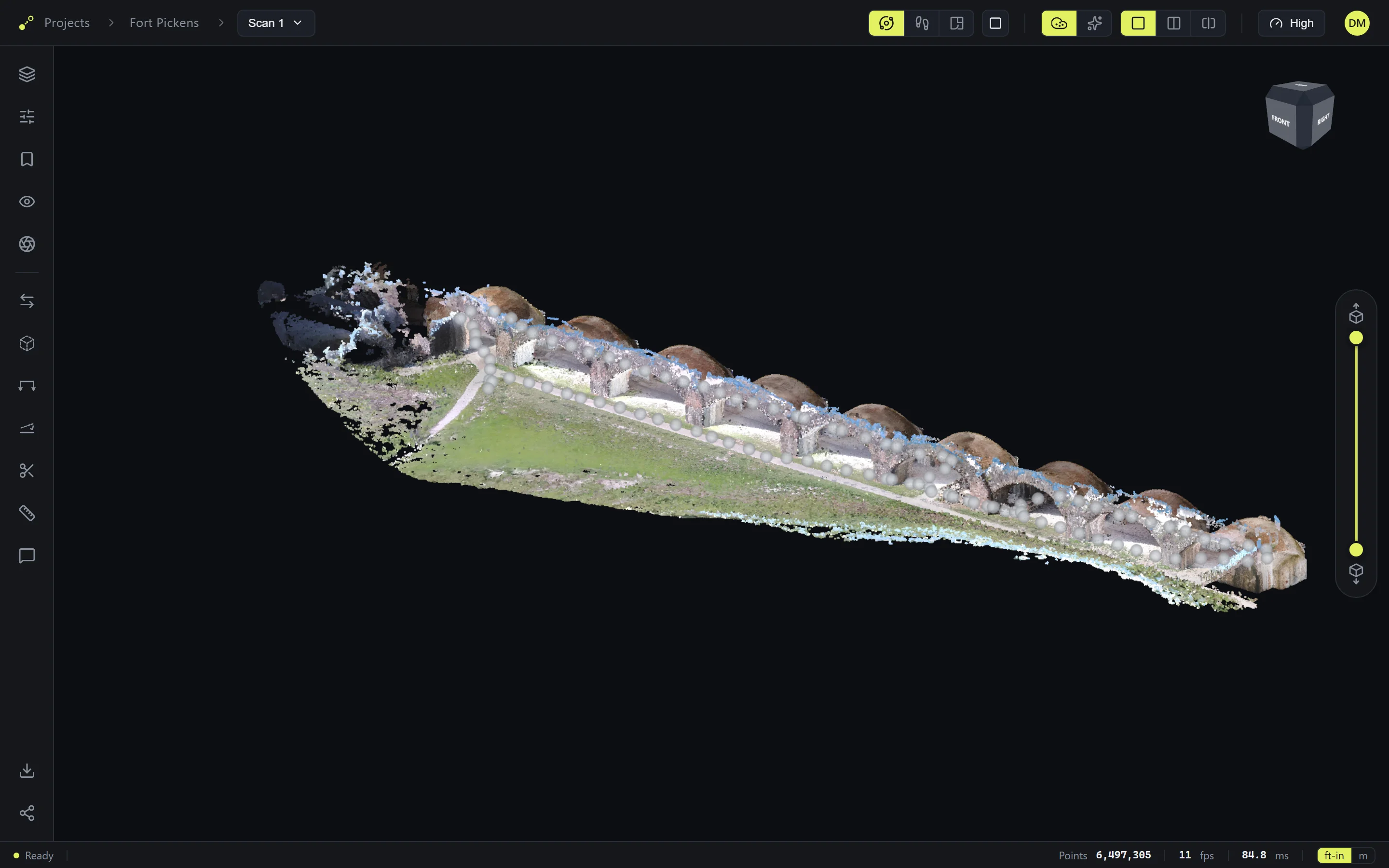
When the scan is Ready, press Open viewer to view it — and the viewer's Share tool creates a link that opens in any browser, no account needed. See the Viewer basics and Sharing projects guides for details.