Guide
Scan cleanup
Updated August 19, 2026
Hide stray points
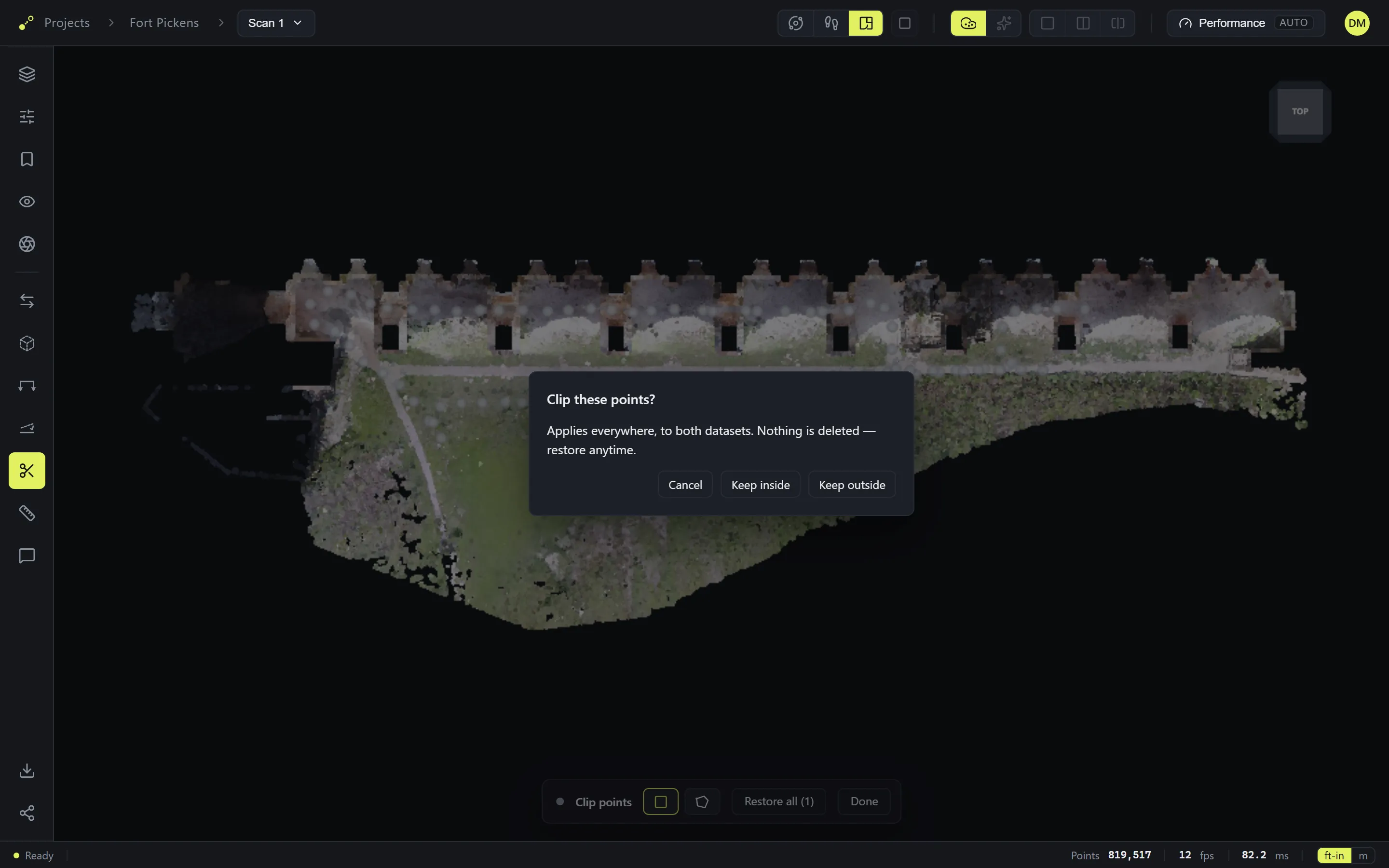
Scans pick up things that don't belong — a person walking through, a parked car, a reflection. Arm Clip points on the rail and drag a rectangle (or draw a polygon) around them, then choose: Keep outside hides what you fenced, Keep inside hides everything else. The clip applies to both the point cloud and the splat, everywhere the scan is seen — including share links. Nothing is deleted: Restore all brings every point back.
Level and square the scan
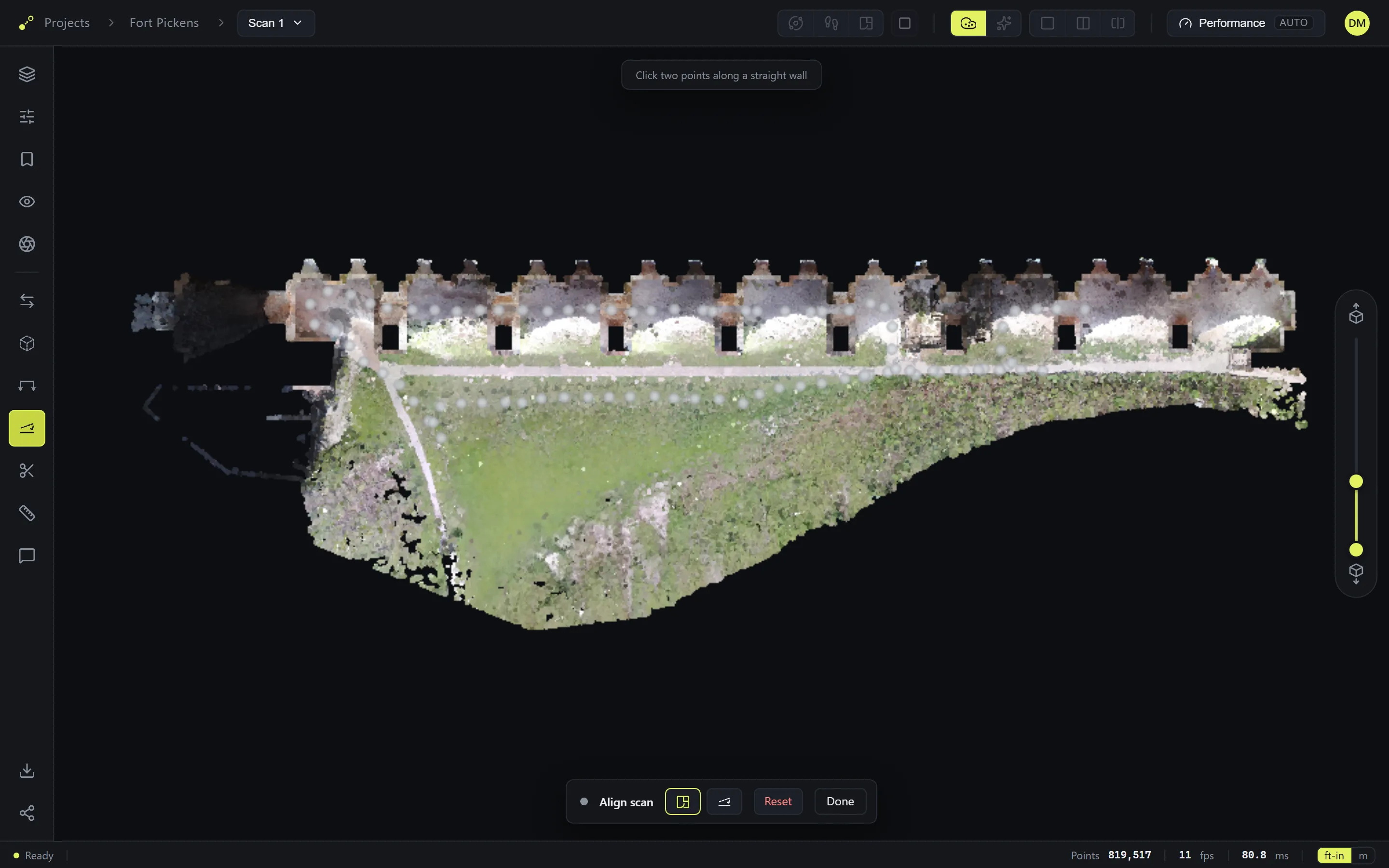
If the whole model sits slightly tilted or rotated, Align scan on the rail trues it up from two clicks: in the plan, click two points along a wall that should run straight — the scan squares to it. In an elevation, click two points along a floor that should be level — the scan levels to it. Reset returns the scan exactly as imported.